SHA-256 on Windows
Verification and rollout guide
Guide
Hash verification is most useful when it is short and repeatable. This guide keeps the process focused on one Windows operator, one downloaded file, and one official source of truth.
What this guide covers
SHA-256 on Windows
A published SHA-256 gives operators something stronger than an icon, filename similarity, or a forwarded screenshot. It lets you compare the exact bytes of the downloaded file with the value published by the software vendor.
On Windows, this is especially useful when software is distributed as a setup file from a website rather than through a package manager or an app store.
The only inputs you need are the official download page, the published SHA-256 shown there, and the exact file you intend to run. Avoid copying the value from a chat message or a second-hand mirror page.
A mismatch does not automatically tell you why something changed, but it does tell you not to continue blindly. Either the file is not the one described on the public page, or you are comparing against the wrong published value.
SHA-256 on Windows
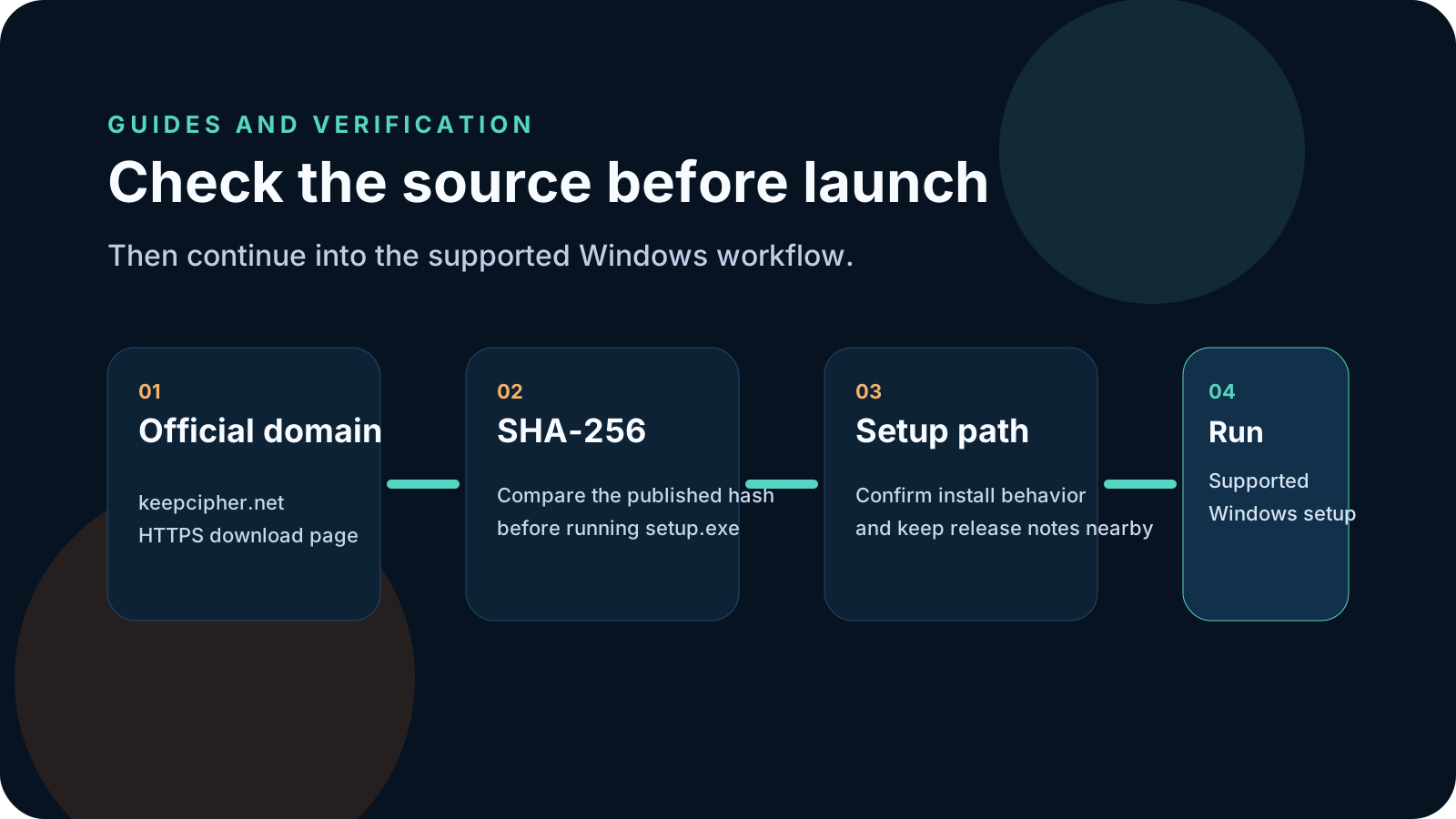
Use this exact sequence when you want a quick verification pass before launch.
Find the download page on the vendor's official domain and copy the published SHA-256 from that page.
Make sure you are checking the exact file that will be launched, not an older copy with a similar name.
Use the built-in Windows hash command or file properties workflow your team has standardized on, then capture the full SHA-256 value.
If every character matches, continue with the documented install flow. If not, stop and re-check the source page and file origin.
KeepCipher
These mistakes are what usually make hash checks feel useless or confusing.
The only safe place to copy the hash is the official vendor page or an official release note controlled by that vendor.
Downloads often contain multiple copies with similar names. Always compute the hash for the exact file you are about to run.
If the SHA-256 does not match, the verification did its job. Stop and re-check the file source before launch.
Related pages
Use these pages if you want the official installer source, trust details, and product workflow that this SHA-256 routine is meant to support.
KeepCipher
Once the file matches the published SHA-256, continue through the official KeepCipher download page and the documented Windows setup path.